
How to Set Up a Mesh WiFi System for Whole-Home Coverage
Difficulty
Intermediate
Time
1-3 hours
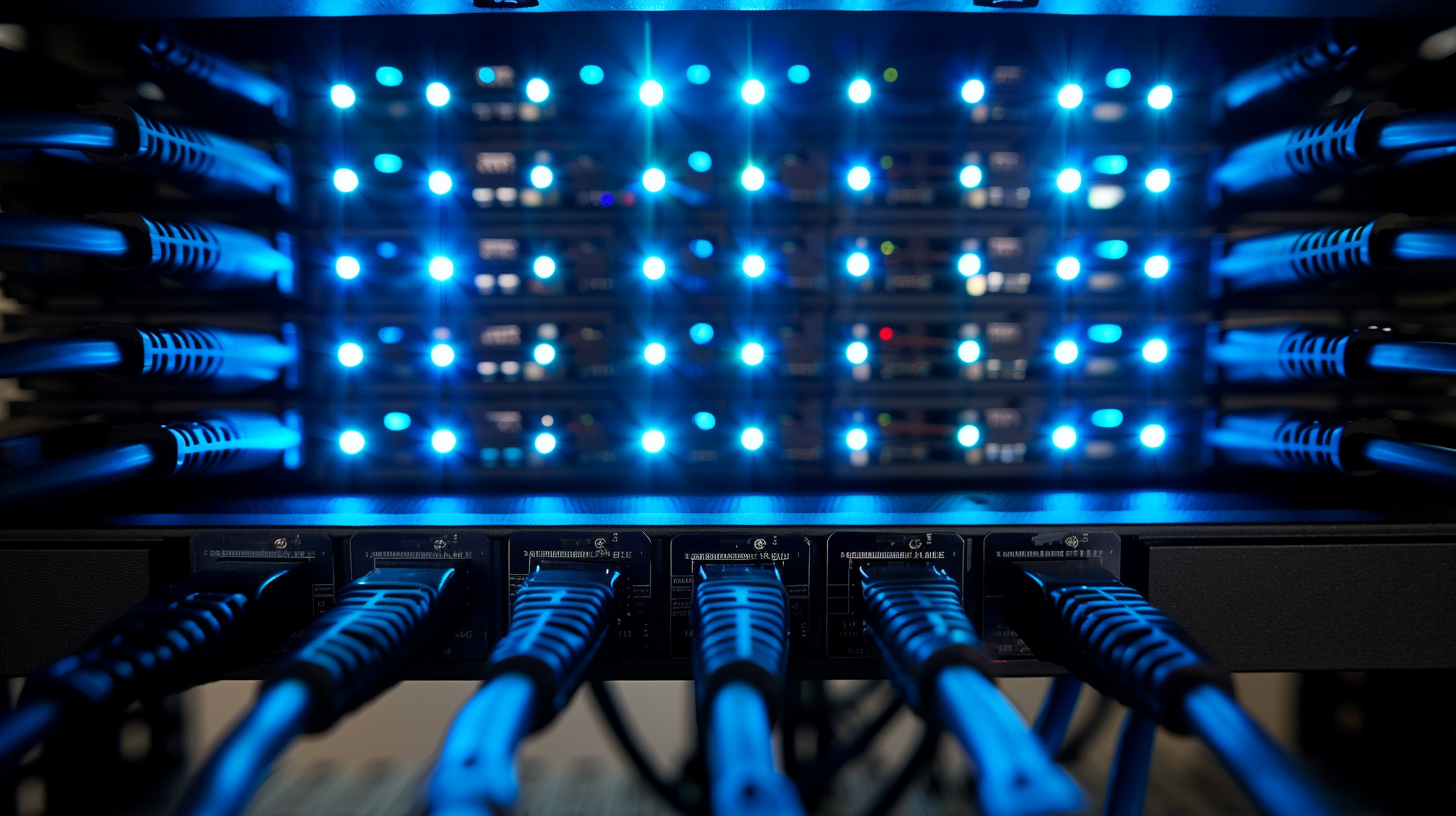
If your WiFi drops in the back bedroom, the basement, or out on the deck, a mesh system is the fix. Instead of one overworked router, mesh uses several nodes that blanket your home in a single, seamless network. Done right, you get strong, fast WiFi in every room with no dead zones and no switching networks as you move around. Here is how to set one up yourself.
Why mesh beats a single router
A single router broadcasts from one spot, so signal weakens the farther you get. Mesh spreads multiple access points across your home and hands your devices off automatically as you move, keeping speeds high everywhere, which is essential in larger or multi-level Northern Colorado homes.
What You'll Need
- •A mesh WiFi kit (2-3 nodes)
- •Existing modem / internet service
- •Ethernet cables (for backhaul, ideal)
- •A smartphone for the setup app
- •A speed-test app
Step-by-Step Setup
Plan your node placement
Map dead zones and plan one node per 1,000-1,500 sq ft. Place the main node near your modem and additional nodes roughly halfway to the problem areas, not all the way in the far corner.
Connect the primary node
Plug the main mesh node into your modem with an Ethernet cable, then power it on. If you have a modem/router combo, plan to put it in bridge or passthrough mode to avoid double-NAT.
Install the app and create your network
Download the manufacturer's app, create your network name (SSID) and a strong password, and let the primary node come online and update firmware.
Add and position satellite nodes
Add each satellite in the app, placing it where it still gets a strong signal from the main node. Elevate nodes off the floor and away from metal, appliances, and thick masonry.
Use wired backhaul if you can
If Ethernet runs are available, connect nodes back to the main unit with cable. Wired backhaul dramatically improves speed and stability versus wireless-only mesh.
Configure bands and features
Enable band steering so devices pick the best band automatically, keep one unified SSID for seamless roaming, and turn on guest network and automatic updates.
Test coverage and speeds
Walk the home running speed tests in former dead zones. Aim for a strong signal and consistent speeds in every room; reposition nodes as needed.
Secure and maintain
Confirm WPA3 (or WPA2) security, change any default admin passwords, and enable automatic firmware updates for ongoing performance and security.
Node Placement: The Make-or-Break Factor
Mesh performance lives and dies by placement. A satellite that is too far from the main node will show full bars but deliver slow speeds because its own connection back to the network is weak.
- • Elevate nodes on a shelf or table
- • Keep line-of-sight where possible
- • Space nodes evenly toward dead zones
- • Use wired backhaul when available
- • Basements or closets with thick walls
- • Next to microwaves or cordless phones
- • Behind TVs or inside cabinets
- • Placing a node in the exact dead zone
Wired Backhaul: The Pro Upgrade
If your home has (or can have) Ethernet between rooms, connecting your mesh nodes with cable is the single biggest performance boost available. Wired backhaul frees the wireless radios to serve your devices instead of talking to each other, delivering near-router speeds at every node. This is where structured cabling during construction or a remodel really pays off.
Getting stubborn dead zones?
Older homes with plaster-and-lath or brick, additions, and detached shops can defeat consumer mesh kits. If you have optimized placement and still fight dead zones, a professionally designed network with ceiling-mounted access points and wired backhaul will solve it for good.
Final Tips
- Keep a single SSID for both bands so roaming is seamless.
- Enable automatic firmware updates for security and stability.
- Re-run speed tests seasonally, especially after adding smart-home devices.
- If you rent your ISP's gateway, put it in bridge mode to avoid double-NAT slowdowns.
Want it done right the first time in Loveland, CO?
Link Light AV handles network, home theater, security, and smart home installation for homes and businesses across Loveland and Northern Colorado. Get a free, no-obligation estimate today.